Sideswipe Soccer Garage
Open Garage to browse car bodies and check equipped items. Open Quests separately from the lobby to claim match objectives.
Equipping Bodies, Effects, and Extras
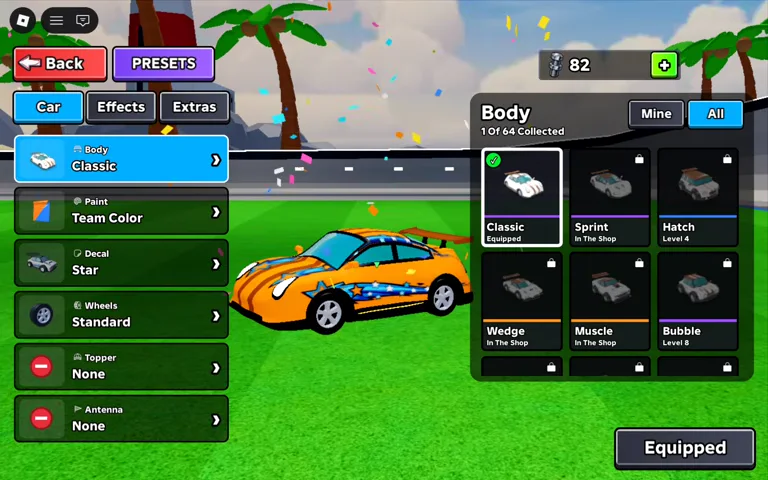
Public footage of the Garage menu shows three primary customization categories along the top navigation: Car, Effects, and Extras. Inside the Car section, selecting the Body tab displays an item grid with filter toggles labeled Mine and All.
The body grid shows an Equipped status for the active body. Roblox lists crates as a customization feature. Crate sources, odds, prices, duplicate handling and any effects on car performance remain unconfirmed.
- Open the Garage from the main lobby screen.
- Select Car, Effects, or Extras from the category bar.
- Switch the filter toggle to Mine to view items already in your inventory.
- Select an owned body and check the Equipped label to confirm which body is active.
Claiming Daily Quests
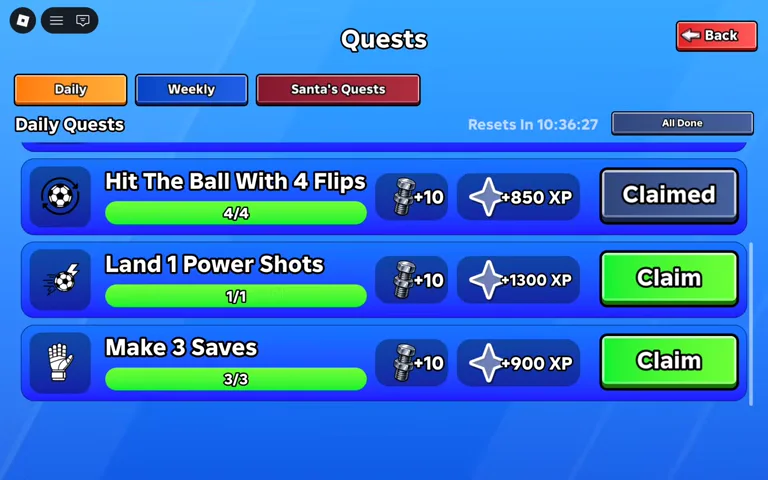
Players can earn progression rewards by completing objectives listed in the Daily Quests menu. Observed footage shows quest cards tracking specific match milestones, such as accumulating Power Shots or recording Saves.
When a completed quest shows Claim, select it and check that the label changes to Claimed. The recording shows Season XP and Bolts in the reward notice. Check your own quest card for its reward.